
Troubleshooting a Black or White Picture or a Screen that does not turn on.
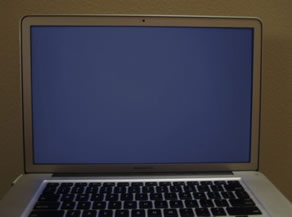 Black screen (no picture) |
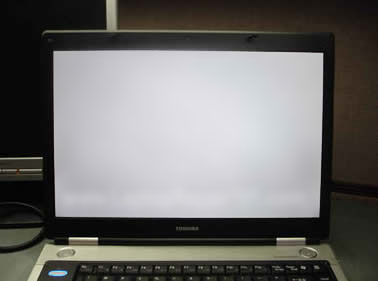 White screen (no picture) |
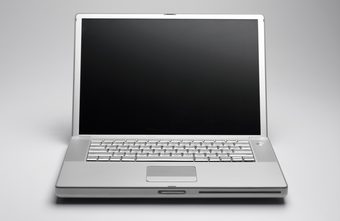 No backlight (does not turn on) |
Possible Causes:
- Resolution Incompatibility: If the resolution of the new screen does not match the resolution of your original screen, then this is likely to happen. Because of this, we always ask customers to purchase a screen with a matching resolution order to prevent this compatibility issue. Many laptop models are available with different resolution screen options.
- Connection Issue: This can also happen if the connector is loose or the cable is damaged.
- Video board issue: Your video board/motherboard may be defective.
- Inverter board (CCFL LCD screens only): Your inverter board may be bad or not be connected properly which will prevent the screen from turning on (what is a CCFL LCD screen?)
- Defective screen: The screen may be defective which would require a return (a refund or replacement)
Here's what you should do:
The troubleshooting steps are very similar for all the picture problems shown above. We recommend doing the following steps:
- Check your connection: The first step is to make sure that the connection between your video cable and screen is tight and secure. With the laptop OFF (battery and power disconnected), disconnect the video cable and reconnect it and make sure that it is secure. Should the connection feel a little loose, you may apply some tape on the ribbon cable immediately below the connection to keep it in place. You should also check that the opposite end of the ribbon cable that connects to the motherboard. Turn on the laptop again to see if this solves the issue. If it does not, try wiggling the cable while the screen is still on. If your video cable is bad, then a new cable may be required to fix this problem.
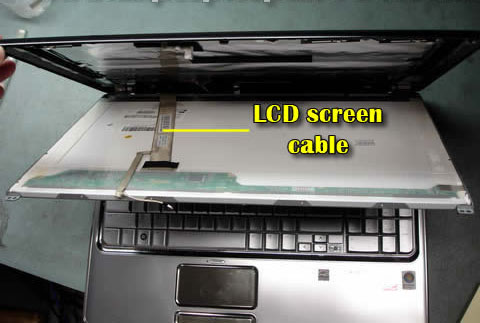
Check the video cable connection to the screen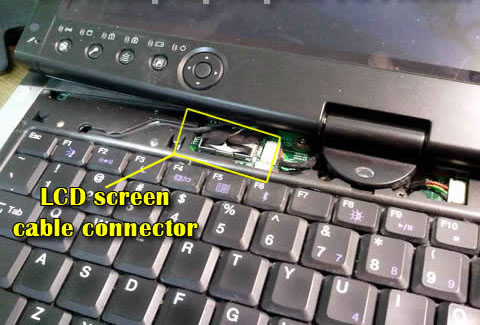
Check the video cable connection to the motherboard - Connect your laptop to an external display: In order to rule out any issues with the screen itself, you should try to connect your laptop to an external monitor or TV. If the problem is produceable on the external display, then this means that there is an issue with your laptop's video board.
- Check your resolution: In order to be sure that the screen is compatible for you, please check that the resolution on your original screen matches the resolution of the screen that you purchased from us. The resolution must match in order for our screen to work for you. If you are not certain of how to find the resolution, please see this page.
- Check your inverter board (CCFL LCD screens only): Check the connection to the inverter board at the bottom of the screen. This is required for the backlight to turn on (what is a CCFL LCD screen?) . For details on how to transfer over and install the inverter board, please see this page.
If you have tried the troubleshooting steps outlined above and the problem still occurs, then please go to this page for instructions on returning the screen to us. You can also use the page to return the screen to us if it turns out that you had purchased the incorrect resolution screen.
Related Articles:
Need to contact us directly? Email Us!